
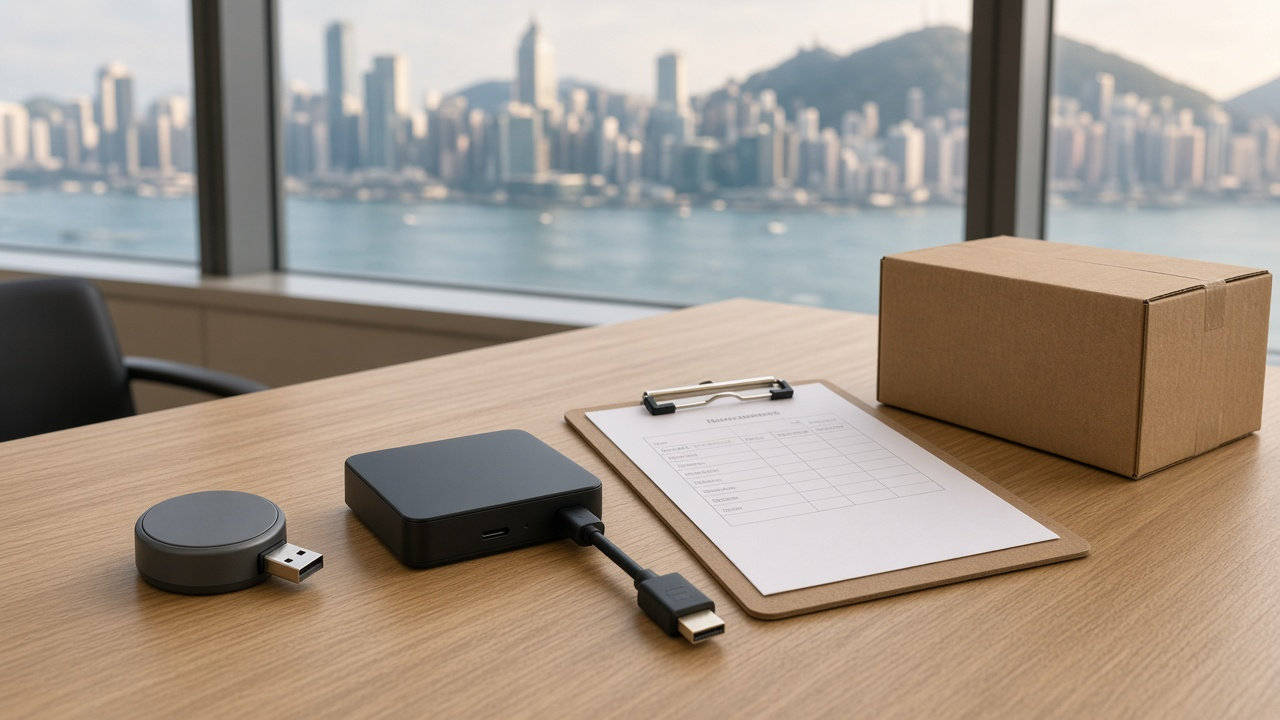
In short: When a Hong Kong office has to retire office wireless presentation systems — the button- or puck-style wireless presenters and their room receivers or base units, wireless HDMI transmitters and receivers, and in-room wireless sharing gateways or appliances that let a laptop or a phone share a screen to a meeting-room display — the job is not finished by unplugging the HDMI cable. The kit is not a digital signage or media player, it is not a room-booking or scheduling panel, it is not a Wi-Fi access point, and it is not a desk docking station. Many room receivers still hold Wi-Fi or room-network credentials, administrator accounts, a PIN or web-management password, paired button or device identifiers, connection logs, and, on some models, certificates or security keys. A USB port on a receiver can still hold leftover media. On some models only, a cache of a recently shared slide, a screenshot or a last-session preview may still be present; many units hold little more than network and pairing data, and this page does not assert that every system caches presentations. Leased, landlord-provided, serviced-office or managed-service units often have to go back to the provider, sometimes still paired and still configured. Returning the hardware, or sending owned units for recycling, does not by itself end the organisation’s duty to protect personal data still stored on the unit or on leftover media. Confirm the return rules in writing if the hardware is not yours, clear what you are allowed to clear, and keep a record of what was actually done.
This article is general information, not legal advice, and it is not a summary of any particular lease, landlord, serviced-office or managed-service contract. Not every office wireless presentation system stores the same data, and many units hold little more than network and pairing data. Platforms and models differ. Check the unit in front of you, and ask the vendor, landlord, serviced-office operator or managed-service provider to confirm the return rules in writing, before you reset, unpair, recycle, or withhold a unit that does not belong to you.
Why retiring a wireless presentation system is not the same as retiring a signage player, a booking panel, an access point or a dock
A meeting-room wireless presentation system is built to let a person in the room share a laptop or phone screen to the display, usually through a button or puck, a wireless HDMI transmitter, or an in-room sharing gateway. The receiver or base unit typically sits behind the display, under the table, in a credenza, or in a floor box, and is easy to treat as just another small black box when a Hong Kong office is packing a floor for a closure, a move, or a hardware refresh. That habit mixes devices that answer different questions. The presentation kit may still hold the room’s network credentials, a leftover administrator PIN, a list of paired buttons, or a USB stick left in a receiver.
This guide is about those meeting-room wireless presentation systems used in a Hong Kong office, a boardroom, a huddle room or a training room: button- or puck-style wireless presenters and their room receivers or base units; wireless HDMI transmitters and receivers; and in-room wireless sharing gateways or appliances. It includes the accessories that usually travel with that kit — charging cradles, power supplies, HDMI or USB-C cables, adapters, and mounts — because those parts are often retired in the same job and are easy to leave behind in a drawer. It is written for overseas headquarters and regional IT, security or compliance teams retiring this hardware, including a floor that is moving, a branch that is closing, or a serviced-office fit-out being handed back.
It is not a guide to retiring a digital signage player or in-room media player. A signage or media player is built to play a scheduled loop or a remote playlist on a display; it is not a meeting-room wireless share kit, even if both boxes sit behind the same screen. It is not a guide to retiring a room-booking or scheduling panel. A booking panel on a corridor wall or beside a door answers a calendar question; unplugging the presentation receiver does not clear the panel, and the two devices should be inventoried on separate lines. It is not a guide to retiring a Wi-Fi access point. A presentation receiver may join a room or guest network, or even host a temporary network of its own, but it is not the office access point, and resetting the presentation kit does not clear the access point. It is also not a guide to retiring a desk docking station. A dock at a workstation may carry video to a desk monitor; it is not the in-room appliance that shares a screen to a meeting-room display. Those devices can travel in the same collection, but they answer different questions and are covered on their own pages.
This page also stays off several neighbouring meeting-room items so that it does not compete with topics already covered elsewhere. It is not a guide to desk IP phones or conference speakerphones, which are already addressed in the office IP phone retirement note. It is not a recycling guide to projectors, electronic whiteboards, or video-conferencing cameras, speakers or host appliances. Those kits can sit in the same room as a wireless presentation system, and they can leave in the same collection, but they are different hardware with different questions. Keep them on their own inventory lines. If a leftover USB stick found in a receiver is later treated as a drive in its own right, handle that item as its own inventory line; for the evidence trail on drives, see our note on hard drive chain of custody in Hong Kong.
What may still be stored, attached, or recorded — and what often is not
What a unit can hold depends on the model and on how it was used. A simple wireless HDMI pair may hold little more than a pairing identity. A managed room receiver or a sharing gateway can hold more. It is worth separating the common cases, because the risk is not the same for every box, and it is not the same as the risk on a laptop or a file server.
- Wi-Fi, LAN or room-network credentials. Many room receivers and sharing gateways join the office LAN, a dedicated room network, or a guest wireless network. The local configuration can still hold an SSID and a pre-shared key, a static IP address, a hostname, DNS or proxy settings, or the identity used to join an 802.1X network. Some units also host a temporary wireless network of their own so that a visitor can share a screen. Those credentials can remain after the display has been taken down, and they may still match a network that remains in use elsewhere in the building.
- Administrator accounts, PINs and web-management credentials. A managed receiver or gateway often has a local administrator account, a room PIN, or a password for a web or on-screen management page. That credential may still be the default, or a code that has been reused in every meeting room, or a password written on a paper label under the chassis or in a room binder. Those accounts can still be present after the office has been emptied.
- Paired buttons, pucks, transmitters and device identifiers. Button-style presenters and wireless HDMI transmitters are commonly paired to a specific room receiver. The receiver can hold a list of allowed buttons or device identifiers; the button or transmitter can hold the pairing data that lets it reconnect. A button left in a drawer, a laptop bag or another meeting room may still be able to reach a receiver that has not been unpaired or reset.
- Connection logs. Some models keep a local log of recent sessions: a device name, a wireless or hardware address, a timestamp, and, on some systems, a user or room name. Logs may also have been sent to a syslog server or an AV management platform. A leftover log is not automatically a tax business record, and it is not automatically disposable; that depends on what the log actually contains and on your own retention rules.
- Certificates or security keys. On some models only, a receiver that joins an enterprise wireless or wired network can hold a client certificate, a private key, or another security token used for authentication. Those items are not a full copy of your directory, but they can still be enough to show how the room kit was allowed onto the network. Do not assume that every consumer-style or simple HDMI pair holds a certificate, and do not assume that a managed gateway holds none.
- Leftover USB media in a receiver. Many room receivers and gateways have a USB port used for firmware, a bypass share, a keyboard, or incidental storage. A stick left in that port can travel with the unit and can hold files that have nothing to do with the presentation system itself. Inspect the port before the unit is packed. Handle leftover media under your removable-media policy; do not leave the stick in the receiver.
- Cached slides, screenshots or last-shared content — on some models only. A few receivers or gateways can retain a cache of a recently shared slide, a screenshot, a thumbnail, or a last-session preview. Many units do not do this. This article does not assert that every wireless presentation system caches presentations. If the model in front of you offers a cache, a session recording or a “last shared” preview, treat that as something to review and clear if you are allowed to. If you cannot determine whether a cache exists, record that limitation rather than guessing.
A simple wireless HDMI transmitter and receiver, or a lightly used button that was only ever paired to one room, often holds little more than pairing data. That is a real category, not a reason to skip the physical check. The same “simple” kit can still have a leftover USB stick in the receiver, a paper password label, a spare button in a drawer, or a network sticker that records an SSID and a key.
What the presentation system usually does not hold is a copy of the organisation’s file servers, user mailboxes or the full slide libraries that were once shown in the room. Those files usually live on laptops, file shares and collaboration platforms, not on the room receiver. Unplugging or recycling the presentation kit does not wipe those systems, and a clean receiver does not prove that a laptop was erased. Do not assume that every office wireless presentation system stores personal data, and do not assume that a unit used in many meetings must contain a copy of every deck that was once displayed. Treat the presentation hardware and the computers that used it as separate lines in the inventory and in the handover record.
The same warning applies to neighbouring meeting-room kit that is easy to pack in the same carton. A signage player behind the same display, a room-booking panel at the door, a Wi-Fi access point on the ceiling, a desk dock left on the table, a conference speakerphone, a projector, an electronic whiteboard, or a video-conferencing camera or host appliance has its own accounts, logs or leftover media, and it is not cleared by handling the wireless presentation system.
A factory reset or an unpairing step is often important — and is not automatically sufficient
For a managed room receiver or a sharing gateway, a supported factory reset, or the vendor’s documented procedure for clearing network credentials, administrator accounts or PINs, pairing lists, logs, certificates and, where the model actually has one, a content cache, can be an important step before the unit leaves your control — if the owner of the hardware allows it. Unpairing buttons, pucks or wireless HDMI transmitters can be an equally important, and sometimes separate, step. A still-valid room PIN, a leftover Wi-Fi key, or a button that is still paired to the receiver can otherwise travel with the kit to a lessor, a recycling site, or another floor.
A reset is not automatically required for every simple wireless HDMI pair, and it is not automatically the same thing as unpairing. Some models offer a reset on the receiver but leave pairing data on the button; some unpair a button without clearing the receiver’s network settings or administrator PIN. Inventing a step the hardware cannot perform does not help the record. A reset is also not automatically allowed on a unit you do not own. Some return conditions expect the system to come back in a working, still-paired, still-configured state, sometimes still joined to the provider’s room network or still holding the building’s standard AV settings.
A reset or an unpairing step is never automatically sufficient. It does not remove a USB stick left in a receiver, a paper label on the chassis or in a room binder, a configuration copy stored on an AV management platform, an integrator’s laptop or a central administration console, or a credential that still exists on the office wireless network, a replacement receiver, or another room that reused the same PIN or pre-shared key. If a credential remains valid after the old box is packed, your own IT or security team still has to decide whether to revoke or rotate it. If the model has no supported reset, or you are not allowed to use one, record that fact rather than inventing a step the hardware cannot perform.
Buttons, pucks and transmitters need the same caution, without assuming that one action clears every piece. A room can have several buttons, a spare in a drawer, and a transmitter that was added later. A button can sit in a laptop bag on another floor. Treat each physical receiver, button, puck and transmitter as its own inventory line, and confirm what the model in front of you actually does, rather than assuming that resetting the base unit, or unplugging the HDMI cable, has cleared every paired device.
Leased, landlord-provided, serviced-office and company-owned units
Ownership decides what you are allowed to do. An office wireless presentation system may belong to the company, to a landlord or serviced-office operator as part of a meeting-room fit-out, to an audiovisual integrator or a managed-service vendor, or to a hardware lessor. The same floor can hold a mix of these: a company-owned huddle-room kit in one room, and a building-standard boardroom system in another. Confirm that in writing before you reset, unpair, recycle, or withhold a unit.
If the unit is leased or provided by a landlord, a serviced office or a managed-service vendor, ask the provider, in writing, whether a factory reset or an unpairing step is required, allowed, or forbidden; whether network credentials, administrator PINs, pairing lists, logs and any content cache must be cleared; and which accessories — buttons or pucks, charging cradles, power supplies, HDMI or USB-C cables, adapters, or mounts — must travel with it. If you are not allowed to clear the system, record what you could and could not check when it left your control. Recycling a unit that does not belong to you, or stripping a kit against the contract, can create missing-parts or service issues. Returning the hardware does not by itself end the duty to protect personal data still on the unit or on leftover media.
Company-owned units are a different decision, and can be planned with the rest of an office relocation or computer disposal in Hong Kong, or as part of an ITAD plan for an overseas company retiring a local office.
Personal data, retention and tax records are not the same issue
Hong Kong’s Personal Data (Privacy) Ordinance (PDPO) and Inland Revenue record-keeping rules answer different questions. One is about whether personal data should still be kept, and how it should be protected or erased when the original purpose has ended. The other is about business records that a person carrying on a trade, profession or business in Hong Kong may have to retain for tax purposes. They are not interchangeable, and retiring an office wireless presentation system does not collapse them into a single “keep everything for seven years” or “delete everything now” rule. For a longer discussion of that distinction in an IT-disposal setting, see our guide to PDPO data retention and IT disposal in Hong Kong.
On 27 November 2026 this publishing environment retrieved the Inland Revenue Department’s English record-keeping page at https://www.ird.gov.hk/eng/tax/bus_rke.htm (HTTP 200, 45,501 bytes, page title “IRD : Record Keeping”). That page states that section 51C of the Inland Revenue Ordinance requires every person carrying on a trade, profession or business in Hong Kong to keep sufficient records in the English or Chinese language of his income and expenditure to enable the assessable profits to be readily ascertained, and that such records shall be retained for a period of not less than 7 years. The records prescribed on that page include books of accounts, vouchers, bank statements, invoices, receipts, records of assets and liabilities, and day-to-day records of money received and expended, among other items listed there.
That seven-year period applies to those business records. It does not automatically apply to a leftover USB stick, a Wi-Fi or room-network key, a pairing list, an administrator PIN, a connection log, a certificate, or a cached slide or screenshot that is not a tax record. Do not store every leftover file found with a presentation receiver for seven years “because of tax,” and do not delete a business record you are required to keep only because a copy once sat on a USB stick left in a meeting-room appliance. A legal hold, an investigation or a contract may also require you to retain particular records. This article cannot tell you which of your files falls into which category; your own legal, tax and records teams have to make that call.
The official PCPD English “ordinance at a glance” page and the erasure guidance PDF are linked here for reference: https://www.pcpd.org.hk/english/data_privacy_law/ordinance_at_a_Glance/ordinance.html and https://www.pcpd.org.hk/english/publications/files/erasure_e.pdf. Live fetches on 27 November 2026 returned HTTP 200, but the bodies were short JavaScript bot-protection pages, not the document text. This article therefore links those official URLs and does not quote them, because the files could not be retrieved from this publishing environment on that date.
A practical order of work
The useful sequence is usually confirmation, a physical sweep and media check, a review of what the model actually holds, a permitted reset or unpairing step where it applies, a review of credentials that may still be valid elsewhere, inventory, then packing — not the other way around. Adapt it to the site, but avoid sealing a carton of room receivers simply because a display collection, a booking-panel collection or a laptop collection is booked.
- Confirm ownership and return rules in writing for every receiver, button, puck, transmitter and gateway, including charging cradles, power supplies, HDMI or USB-C cables, adapters and mounts issued with it, and whether a factory reset or an unpairing step is required, allowed or forbidden.
- Sweep the rooms, drawers, credenzas, cable trays and laptop bags for loose buttons, pucks, spare transmitters, cradles and cables. Receivers are easy to miss when they are mounted behind a display, under a table or in a floor box. Count what you find against the room list, not against the number of displays still on the wall.
- Inspect every USB port on a receiver or gateway before the unit is packed. Remove leftover media. Handle those items under your removable-media policy; do not leave them in the appliance. Look for paper labels, room binders or underside stickers that record a PIN, a web-management password, an SSID or a pre-shared key.
- Review what you are allowed to review: Wi-Fi, LAN or room-network credentials; administrator accounts, PINs and web-management credentials; paired buttons or device identifiers; connection logs; certificates or security keys if the model holds them; and, on models that actually offer one, a content cache or last-session preview. Record the management address or hostname if you use one in your network or AV records.
- Ask your IT or security team to review credentials that may still be valid outside the box — for example a room or guest Wi-Fi key reused on a replacement receiver, an administrator PIN used in every meeting room, a client certificate, or a button that can still join another receiver — and to revoke, rotate or unpair them if that is the right step for your environment. This article cannot prescribe that decision for every site.
- Inventory by site and room: model, asset tag or serial if present, and whether the unit is owned, leased, landlord- or facility-provided, or supplied as a managed-service device. Count each receiver, button, puck and transmitter as a separate physical unit. Keep signage players, room-booking panels, access points, docking stations, desk phones and conference speakerphones, projectors, electronic whiteboards, and video-conferencing cameras or hosts on their own lines.
- Update network, room and asset records you control, such as a management-network allow-list, a DNS or DHCP reservation, an AV management entry, a room diagram, or a meeting-room kit list that still names the old receiver or its buttons.
- Reset or unpair only where you are allowed to, and only if the model actually offers a supported method. Do not treat a reset as a substitute for the media check, for the button sweep, for credential review, or for handling configuration copies stored elsewhere. A simple wireless HDMI pair with no supported reset should be recorded as not applicable, not as “cleared.”
- Pack the unit with the accessories the return list requires, and keep leftover media and paper password labels out of that carton unless the owner of those items has been identified and the items are being returned on purpose.
- Record what was done and what could not be completed, with the name or role of the person who did it and the date.
What to record before the hardware leaves
For overseas compliance teams, a short inventory is usually more useful than a photograph of a pile of black room boxes and loose buttons. Record, at least:
- The model, asset tag or serial if present, and the site and room, including which receiver, button, puck or transmitter belongs together as a kit.
- Whether the unit is owned, leased, provided by a landlord or serviced office, or supplied as a managed-service device, and whether it must be returned to that provider.
- The management IP address or hostname if you use one, and whether a charging cradle, power supply, cable, adapter or mount was packed with the unit.
- Whether leftover media was found in a USB port, and what was done with those items.
- Whether a supported factory reset, unpairing step, or account-clearing step was completed, attempted, not allowed, or not applicable — including simple units with no meaningful reset. If a content cache could not be confirmed, record that limitation.
- Whether your team reviewed Wi-Fi or room-network credentials, administrator PINs, certificates, or pairing data that may still be valid outside the unit, and what was decided, if that review was in scope.
- Who handed the units over, to whom, and any vendor, landlord or collection receipt. A hardware collection receipt alone may not show what happened to network credentials, pairing data, leftover media or any cached content.
Keep that record with the office-closure or equipment-return file. Neighbouring meeting-room hardware should be inventoried on its own line, not rolled into the wireless presentation count.
How HKRT can help — and what we will not claim
Hong Kong Recycling Trading Company Limited (HKRT) can help a Hong Kong office retire office wireless presentation systems that the company owns, and can discuss a practical handling plan once we have a model list, a rough count and the location. If the units are leased, landlord-provided, supplied by a serviced office, or issued as a managed-service device, we can help you frame the questions to ask the provider. We cannot override that contract, and we cannot log into a third-party lessor, landlord, vendor or facility-management system on your behalf unless that access is separately and expressly arranged — this article does not offer that service.
We will not, in this article or in a casual quote, claim any of the following:
- A price, a same-day promise, or a guaranteed turnaround for every office wireless presentation job.
- That every unit will be processed to a stated shred size, or that a hard-drive process will be applied to every presentation receiver, button or wireless HDMI kit.
- That a factory reset, an unpairing step, or any single method, is sufficient for every model, or that every wireless presentation system stores personal data or caches presentations.
- That we will issue, for every unit, the same style of report that may be issued when licensed erasure software is used on a computer drive.
- That HKRT is an official partner, official certified centre, or official certification body for any erasure-software vendor. Where licensed Blancco software is used, it is because HKRT holds a software licence; that is not the same as an official partner or certified-centre appointment, and a presentation receiver, button or wireless HDMI unit is often not a suitable candidate for that method.
- That ISO 9001, ISO 14001, ISO 27001 or ISO 45001 is a waste-processor or e-waste disposal licence. They are management-system certifications. HKRT also holds a chemical waste producer registration; that is not a waste-treatment or collection licence.
- That office wireless presentation systems are, in every case, regulated electrical equipment under Hong Kong WEEE rules. This article does not classify the hardware that way.
- Legal advice on your lease, a landlord, serviced-office or managed-service contract, the PDPO, a tax record-keeping decision, or a legal hold.
If you already have a model list or a rough count, the Hong Kong location, the collection date if you have one, and a note on whether the units are owned, leased, landlord- or facility-provided, or supplied as a managed-service device — or a note that you still need help framing those questions — send that and we will reply with a plan and a quote for work in Hong Kong.
Retiring office wireless presentation systems in a Hong Kong office?
Send us the model list or a rough count and location, whether the units are owned, leased, landlord- or facility-provided, or supplied as a managed-service device, and the collection date if you have it, and we will reply with a plan and quote for work in Hong Kong.
Hong Kong Recycling Trading Company Limited (HKRT)
Contact us 24/7 on +852 3619 4638.
Frequently asked questions
Do office wireless presentation systems usually store personal data?
It depends on the model and on how the unit was used. Many room receivers and sharing gateways can hold Wi-Fi or room-network credentials, administrator accounts or PINs, paired button or device identifiers, connection logs, and, on some models, certificates or security keys. Leftover USB media can also travel with a receiver. On some models only, a cache of a recently shared slide, a screenshot or a last-session preview may still be present; many units hold little more than network and pairing data, and not every system caches presentations. Business files usually live on laptops and servers, not on the room kit. Check the model in front of you rather than assuming it is empty, or that it holds a copy of every deck that was once displayed, or that every wireless presentation system stores personal data.
Is a factory reset or unpairing needed before we return or recycle office wireless presentation systems in Hong Kong?
Only if the model offers a supported reset or unpairing step and the owner of the hardware allows it. A reset or an unpairing step can be important on a managed receiver or gateway, because network credentials, administrator PINs, pairing lists, logs, certificates or, on some models, a content cache may otherwise stay on the unit. It is not automatically required for every simple wireless HDMI pair, and it is not automatically sufficient. A reset does not remove a USB stick left in a receiver, a paper label on the chassis, a configuration copy stored on an AV management platform or an administrator’s computer, or a credential that is still valid on the office network or a replacement unit. Confirm the return rules in writing if the unit is leased, landlord-provided, supplied by a serviced office, or issued as a managed-service device.
What should we check for on a wireless presenter, room receiver or wireless HDMI kit before packing it?
Sweep the room and nearby drawers, credenzas, cable trays and laptop bags for loose buttons, pucks, transmitters, cradles and cables, including receivers mounted behind a display or in a floor box. Check USB ports on a receiver or gateway for leftover media. Look for paper labels or notes that record a PIN, a web-management password, an SSID or a pre-shared key. On a managed unit, review — if you are allowed to — network credentials, administrator accounts, pairing lists, logs, certificates, and any content cache the model actually offers. On a simple wireless HDMI pair, still complete the physical media, label and accessory check; there may be no meaningful configuration to clear. Confirm which accessories belong with the kit. Do not treat this check as a substitute for handling the laptops and other meeting-room systems used in the same rooms.
Does returning a leased or facility-provided wireless presentation system end our duty to protect personal data?
Not by itself. Returning the hardware to a lessor, a landlord, a serviced office, or a managed-service vendor does not automatically remove network credentials, administrator PINs, pairing data, leftover media or any cached content, and it does not deal with the laptops and other systems used in the same rooms. If the contract requires the unit to go back in a working, configured or still-paired state, confirm in writing what you are allowed to reset, unpair or erase. If you are allowed to clear it, do that before handover and record what was done. If you are not allowed to reset it, record that limitation and what was still on the unit, or what you could not check, when it left your control.
Can we recycle leased, landlord-provided or serviced-office wireless presentation systems ourselves?
Only if the lease, landlord fit-out, serviced-office or managed-service agreement allows it in writing. Many return conditions expect a complete, working system, often with its buttons or pucks, charging cradles, power supplies, cables and mounts, to go back to the provider. Recycling or destroying a unit that does not belong to you, or stripping parts against the contract, can create missing-parts or service issues. Company-owned units are a separate decision.
What should we record before the wireless presentation hardware leaves the Hong Kong office?
Record the make and model if known, asset or serial numbers if they are visible, the site and room, a count of receivers, buttons, pucks, transmitters and accessories, and whether the units are owned, leased, landlord- or facility-provided, or supplied as a managed-service device. Note whether leftover media was found and what was done with those items, and whether a supported reset or unpairing step was completed, attempted, not allowed or not applicable. If a content cache could not be confirmed, record that limitation. If your team reviewed network credentials, administrator PINs, certificates or pairing data that may still be valid outside the unit, note what was decided. Keep any vendor or collection receipt. A receipt for the hardware alone may not show what happened to credentials, pairing data, leftover media or any cached content.